
6 Phone Photography Apps Pros Still Reach For: Camera+, Afterlight, Lightroom, and More
Camera+, Afterlight, Adobe Lightroom, TouchRetouch, Facetune, and Manual—six phone apps for capture, correction, cleanup, portraits, and style, without fake rankings.
Phone cameras already capture more of daily life than most dedicated cameras ever did: vacations, newborns, street corners, and the accidental frame that turns out better than the planned one. Hardware helps, but editing and capture apps decide whether a shot looks like a quick snapshot or something closer to intentional photography. The six apps below—Camera+, Afterlight, Adobe Lightroom, TouchRetouch, Facetune, and Manual—appeared in earlier roundups as a practical toolkit for color, cleanup, portraits, and manual control. Availability, pricing, and feature sets change over time; treat store pages as the current source of truth, and treat this guide as a workflow map rather than a ranking chart.
Keep the screenshots as visual reminders of each app’s character. Skip the old App Store and carrier promo links. What matters is how the tools fit together: capture with control, correct globally, remove distractions, polish faces when appropriate, then apply a consistent look if you publish often.
Camera+ — capture and clarity tools
1. Camera+
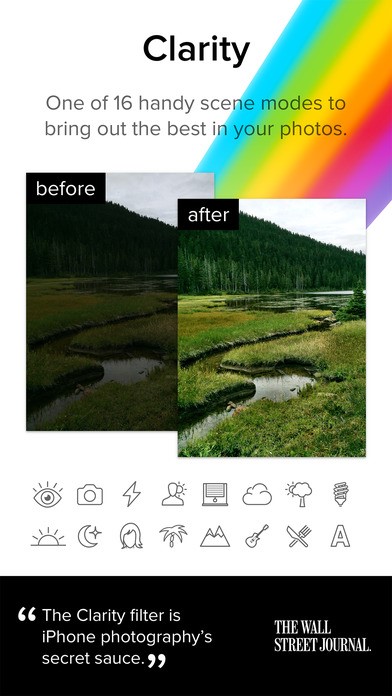
Camera+ has long been the “better camera roll” choice for people who want more than the stock shutter button. Classic strengths include expanded exposure controls, touch focus, timers, digital zoom options, continuous or frontal flash helpers, and preset filters. The Clarity-style enhancement—sharpening, brightening, and color correction aimed at flat or poorly lit scenes—is the feature many users remember first.
Use Camera+ when the native camera feels limited mid-shoot: a dim dinner, a backlit window, a kid who will not hold still for three focus taps. Touch focus and exposure separately when faces sit against bright skies. Prefer gentle clarity over aggressive sharpening; phone sensors already invent detail, and over-processing looks plastic on large screens.
Workflow tip: shoot a clean frame first, then decide whether Clarity is a finishing move or a rescue. Saving both versions teaches you what the app is actually changing.
Afterlight — filters, textures, and frames
2. Afterlight
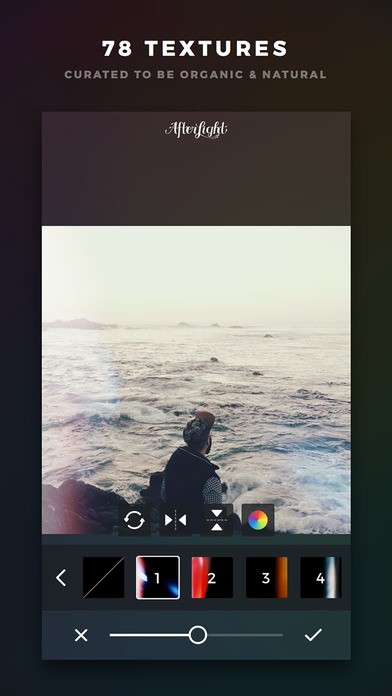
Afterlight sits in the filter-and-finish lane—closer to a stylized Instagram toolkit than to a raw darkroom. Filters, textures, frames, and stacked adjustments let you build a mood quickly. Bloggers and social accounts often use it to lock a signature look: one filter family, one texture intensity, one frame choice, repeated until the feed feels intentional.
The professional move is restraint. Pick two or three combinations and reuse them instead of reinventing the look every post. Match style to subject: softer textures for portraits, higher contrast for architecture, cooler tones for rainy streets. Export at the resolution your platform actually displays; oversized files with heavy texture can muddy on compression.
Afterlight works well after global corrections elsewhere. Fix exposure and white balance first, then apply the look so you are not stacking mood on top of a broken base image.
Adobe Lightroom — slider-based correction
3. Adobe Lightroom
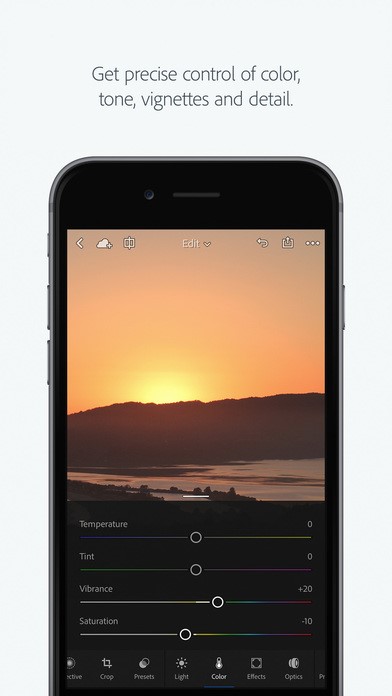
Lightroom remains the reference mental model for photographers who think in exposure, contrast, highlights, shadows, white balance, vibrance, and selective edits rather than one-tap presets. The mobile app brings that slider language to the phone. If you already use Adobe’s desktop tools or cloud libraries, mobile Lightroom’s value is continuity: import, edit, and sync work across devices when your account and file types support it.
Phone models and OS versions affect what you can capture and edit—especially for RAW workflows. Older articles tied features to specific handsets; those pairings age quickly. Check what your current device can shoot and what the app can open. Prefer RAW or high-quality originals when you plan heavy recovery of skies and shadows.
Practice a short edit order: crop and straighten, white balance, exposure, contrast, then color, then local adjustments. Presets are fine as starting points if you still finish with your eye. Lightroom is the place to fix truth; Afterlight-style apps are the place to add style afterward if you still want a signature finish.
TouchRetouch — lines and object removal
4. TouchRetouch
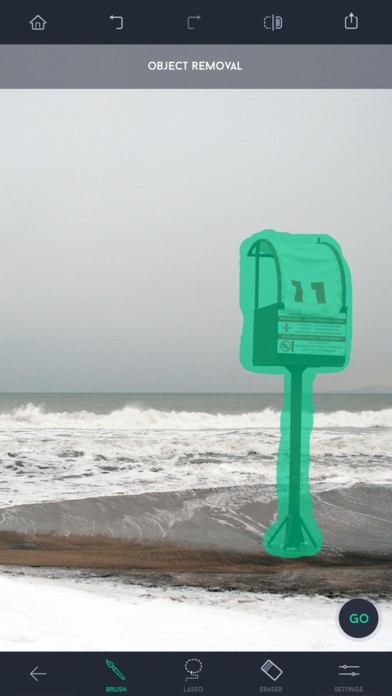
TouchRetouch exists for a single honest job: remove distractions. Power lines across a landscape, a trash can in a corner, an outlet behind a portrait, a photobomber at the edge of a wedding frame—these are the reasons people open a healing or clone-style tool. Line removal, object removal, and quick repair functions turn a good composition into a clean one without rebuilding the whole image in a desktop editor.
Work zoomed in. Remove small, high-contrast intrusions first. Avoid erasing structural truth in documentary or news-style photos; for personal and commercial lifestyle work, cleanup is usually fair game when it does not invent a false scene. Save a before copy if the edit is aggressive.
TouchRetouch pairs naturally with Lightroom: correct light and color, then heal. Doing heal first on a badly exposed file wastes time when exposure shifts change how seams look.
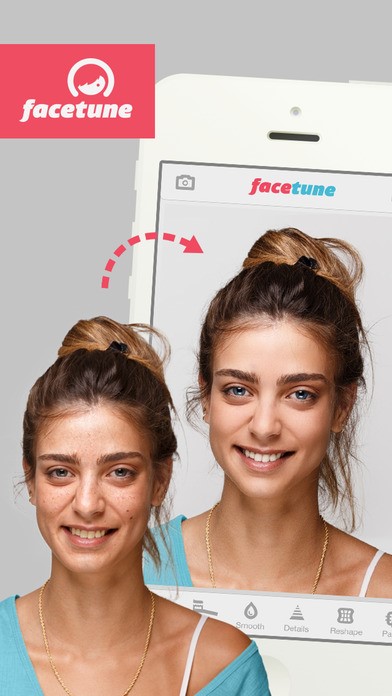
5. Facetune
Facetune targets portraits and selfies: teeth whitening, blemish cleanup, stray hair softening, eye brightening, and skin smoothing. It became famous as a fast face editor—sometimes joked about as “autotune for faces”—because small swipes can change how someone reads in a feed. That power asks for ethics as much as technique.
For client or friend photos, ask before heavy retouching. For your own images, decide whether you want polish or likeness. Soften temporary blemishes more freely than bone structure or skin texture that defines a person. Over-smooth skin is the fastest way to look edited rather than professional. Professional portrait work often keeps pores and catchlights; it removes only what distracts.
Use Facetune after global color correction. Whitening teeth on a yellow color cast fights the cast instead of fixing it. Zoom to 100% on skin edits; phone screens hide plastic smoothing until you open the file on a laptop.
Manual — RAW and exposure control
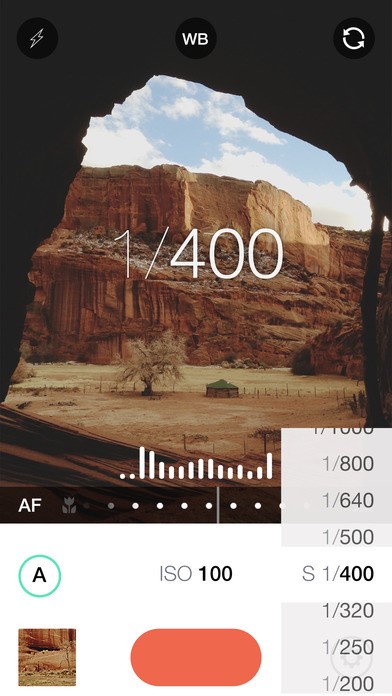
6. Manual — RAW Custom Exposure Camera
Manual is for shooters who want shutter, ISO, white balance, focus, and exposure under deliberate control—closer to a film or mirrorless mindset than to a fully automatic phone mode. You can let the app assist or take charge of each parameter. Features such as switching between focal-length modes (older write-ups mentioned 28mm and 56mm-style toggles on supported devices) and quick launch from the lock screen matter when timing is the photograph.
Learn one variable at a time. Lock focus and exposure on a mid-tone, then change shutter for motion. Raise ISO only after you understand the noise on your specific phone. Shoot RAW when you plan to finish in Lightroom; JPEG is fine for social posts you will barely edit.
Manual does not replace taste. It gives you cleaner files when light is uneven—concert edges, window portraits, night streets—so later apps have more to work with.
A simple phone-pro workflow
Capture with Manual or Camera+ when the scene needs control. Correct with Lightroom. Heal distractions with TouchRetouch. Touch faces with Facetune only when the portrait calls for it. Finish with Afterlight if you need a consistent public look. Not every photo needs all six; most need two.
Professional results on a phone still start with light, timing, and composition. Apps amplify good decisions and advertise bad ones. Download what matches the job you actually have—cleanup, color, capture, or style—then practice on ten ordinary frames until the tools feel boring. Boring tools are the ones that disappear, which is when the photograph finally shows up.

Comments
Continue reading

Funny Animal Signs That Warn People (While Animals Ignore Them)
From a seagull on a no-birds disc to classic zoo and park ironies—why animal warning signs get funny, and what the rules are still for.
How to Find Local Amenities on Vacation: Mechanics, Haircuts & More
Locate trustworthy local services and everyday spots while traveling or settling in—using publications, reviews, map apps, neighbor tips, and low-pressure exploration.

Kristen Stewart for V Magazine, Spring Preview 2013
V81’s Wild at Heart cover story—Kristen Stewart shot by Inez & Vinoodh, styled by Joe McKenna, in pale minimal spring glamour.